

How to troubleshoot common 3D software issues
If you want to learn how to troubleshoot common 3D software issues, read on.
Whether you’re a hobbyist fine-tuning your first print or a seasoned maker pushing the limits of your FDM or resin printer, one thing is certain: 3D software glitches can derail your entire workflow. From slicing errors to mesh nightmares, these digital hiccups can be frustrating—but they’re also fixable.
In this guide, we’ll walk you through how to troubleshoot common 3D software issues, packed with actionable tips, expert insights, and real-world solutions. Let’s turn those error messages into learning moments and get your prints back on track.
🧩 1. STL File Not Loading or Crashing the Software
Keywords: STL file won’t open, 3D model crashing slicer, corrupt STL fix
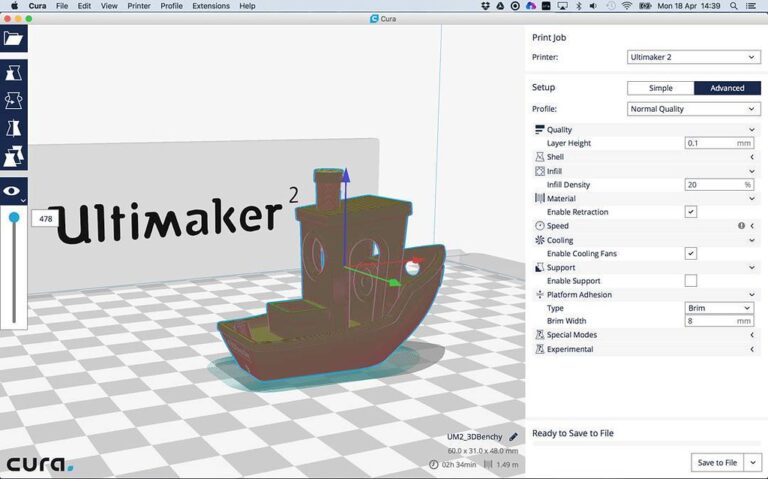
Problem: You import an STL file into your slicer (like Cura, PrusaSlicer, or Lychee), and boom—nothing happens, or worse, the software crashes.
Fixes:
- Check File Integrity: Use Microsoft 3D Builder or Meshmixer to open and auto-repair the STL.
- Use Netfabb Online Repair: Autodesk’s Netfabb repair service can fix broken meshes in seconds.
- Reduce File Complexity: Overly detailed models can choke slicers. Use Blender’s “Decimate” modifier to reduce polygon count.
Pro Tip: Always inspect downloaded models before slicing. A quick preview in a mesh viewer can save hours of frustration.
🧵 2. Slicer Freezing or Taking Forever to Slice
Keywords: Cura freezing, PrusaSlicer slow, slicing takes too long
Problem: You hit “Slice” and your computer sounds like it’s about to take off. Minutes pass. Nothing happens.
Fixes:
- Update Your Slicer Software: Outdated versions may have memory leaks or bugs. Always use the latest stable release.
- Optimize Model Orientation: Large flat surfaces or complex overhangs can slow slicing. Rotate the model to reduce support needs.
- Check for Non-Manifold Geometry: Use software like Blender or Netfabb to detect and fix non-manifold edges.
Bonus Tip: Enable GPU acceleration in your slicer settings if available. It can drastically improve performance.
🧱 3. Model Looks Fine but Prints with Gaps or Missing Layers
Keywords: missing layers in 3D print, gaps in print, model not solid
Problem: The preview looks perfect, but the actual print has holes, gaps, or missing infill.
Fixes:
- Check Wall Thickness: Thin walls may not be printable. Ensure walls are at least 1.2 mm thick (3x your nozzle diameter).
- Enable “Detect Thin Walls” or “Fill Gaps Between Walls”: Most slicers have this option to compensate for narrow geometry.
- Use “Solid View” in Slicer: This mode shows what the printer will actually print—not just what the model looks like.
Nugget: Use MakePrintable to analyze and repair models for printability.
🧭 4. Supports Not Generating Properly
Keywords: 3D print supports missing, support structure issues, Cura support settings
Problem: Your slicer either generates too many supports or none at all, leading to failed overhangs or wasted filament.
Fixes:
- Adjust Overhang Angle Threshold: Lower the angle to generate more supports, raise it to reduce them.
- Use Custom Supports: Tools like PrusaSlicer and Lychee allow manual support placement for precision.
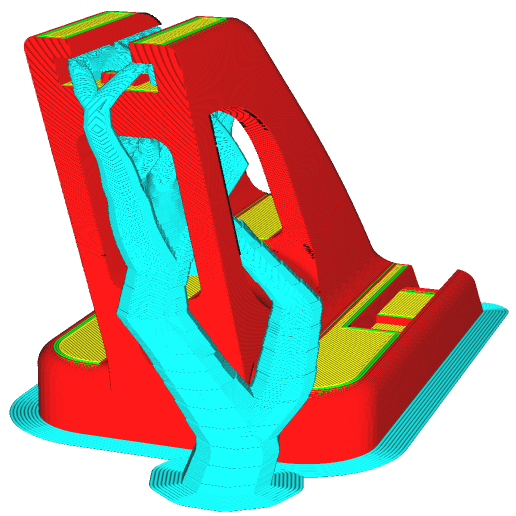
- Try Tree Supports: In Cura, tree supports can reduce material use and improve surface finish.
Pro Tip: Always preview your support structures layer by layer before printing.
🧮 5. Incorrect Scaling or Units Mismatch
Keywords: STL scale wrong, model too small, inches vs mm 3D printing
Problem: You import a model and it’s either microscopic or gigantic.
Fixes:
- Check Units: STL files don’t store units. If the model was designed in inches and your slicer assumes millimeters, it’ll be 25.4x too small.
- Use Import Scaling: Most slicers allow you to scale on import. Cura, for example, lets you scale by 2540% to convert inches to mm.
- Fix in CAD: If you have access to the original CAD file, export it in a format that preserves units (like STEP or OBJ).
🧠 6. Software Crashes When Adding Multiple Models
Keywords: slicer crash multiple files, batch printing issues, Cura crash fix
Problem: You try to load several models for batch printing, and the software crashes or becomes unresponsive.
Fixes:
- Check RAM Usage: Large models eat memory. Monitor your system’s RAM and close other apps.
- Use Lightweight Models: Simplify meshes before importing. Tools like MeshLab or Blender can help.
- Split the Job: Slice models individually and combine G-code later using tools like OctoPrint’s G-code merger.
🧼 7. Artifacts in Preview That Don’t Exist in the Model
Keywords: slicing artifacts, weird lines in preview, 3D print glitches
Problem: You see strange lines, blobs, or gaps in the slicer preview that aren’t in the original model.
Fixes:
- Check for Overlapping Geometry: Two meshes occupying the same space can confuse the slicer.
- Use “Combine Models” or “Union Overlapping Volumes”: This merges overlapping parts into a single mesh.
- Re-export from CAD: Sometimes re-exporting the model with “merge bodies” enabled can fix the issue.
🧰 Bonus: Essential Tools to troubleshoot common 3D software issues
Here’s a quick toolkit to keep in your digital toolbox:
| Tool | Purpose |
|---|---|
| Meshmixer | Mesh repair, hollowing, support generation |
| Blender | Advanced mesh editing, decimation, scaling |
| Netfabb | STL repair and analysis |
| MakePrintable | Online mesh repair and optimization |
| PrusaSlicer/Cura | Slicing with advanced preview and support tools |
🚀 Final Thoughts: Mastering the Digital Side of 3D Printing
3D printing isn’t just about hardware—it’s a digital craftsmanship. Knowing how to troubleshoot 3D software issues is just as important as bed leveling or filament choice. By learning to diagnose and fix these common problems, you’ll save time, filament, and frustration.
So next time your slicer throws a tantrum or your model refuses to cooperate, don’t panic—refer back to this guide, roll up your sleeves, and dive into the fix. Your perfect print is just a few clicks away.
Want more 3D printing tips, slicer hacks, and troubleshooting guides? Bookmark this blog and stay tuned for our next deep dive into resin printing pitfalls and how to conquer them like a pro.
Let’s keep those nozzles clean and those layers tight. Happy printing! 🧡
Some of our most recent software news – blog posts:
-
Learn How to Use Prusa Slicer: Step-by-Step Tutorial
Learning how to use PrusaSlicer will help you unlock better print quality, faster slicing, and more control over your projects
-
Future Trends in 3D Software and Automation
Artificial intelligence is transforming 3D modeling and CAD workflows, enabling designers to create optimized, lightweight, and functional geometries with minimal manual input.
-
How to optimize CAD files for 3D printing
1. Preparing Your CAD Model for 3D Printing Learn How to optimize CAD files for 3D printing. Before slicing a CAD model for 3D printing, ensuring a clean, optimized design is crucial. A well-prepared file reduces print errors, improves structural integrity, and minimizes the need for excessive supports. Choosing the Right File Format Different file…
-
How to use supports in 3D slicer software
Support structures often make the difference between a flawless model and a failed print.