

Common FDM printer troubleshooting tips

1. Diagnosing Print Issues: What to Check First
Troubleshooting an FDM 3D printer starts with identifying the root cause of print failures. Before adjusting settings or replacing components, beginners should systematically check key areas affecting print quality. Here are our FDM printer troubleshooting tips:
Common Problems and What They Mean
Here are some frequent print issues and their likely causes as FDM printer troubleshooting tips:
- Stringing (Thin strands between parts) – High temperature, improper retraction settings.
- Warping (Edges lifting off the bed) – Poor bed adhesion, incorrect first-layer temperature.
- Under-extrusion (Gaps in layers, missing filament) – Clogged nozzle, low extrusion multiplier.
- Layer adhesion problems (Weak prints, splitting layers) – Wrong temperature settings, poor filament quality.
Each issue can often be traced back to either hardware, slicer settings, or environmental factors.
Checking Printer Hardware First
Before making software adjustments, inspect your printer’s physical components:
- Nozzle cleanliness – A partially clogged nozzle can restrict filament flow.
- Bed leveling – An uneven print bed causes adhesion issues and uneven layers.
- Filament feeding – Knots or grinding in the extruder affect material flow.
Performing a quick maintenance check saves time by eliminating hardware-related problems.
Reviewing Slicer Settings for Better Prints
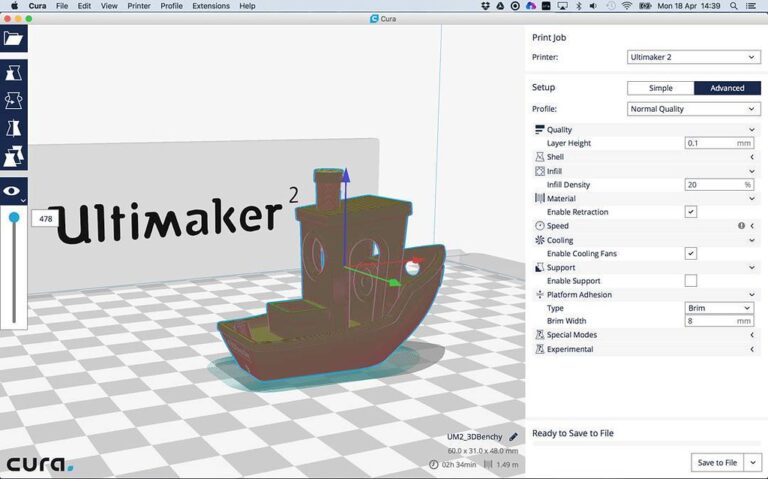
Misconfigured slicer settings lead to bad layer formation, extrusion inconsistencies, and adhesion failures. Before printing, review these FDM printer troubleshooting tips:
- Temperature settings – Adjust extruder and bed temps based on filament type.
- Retraction parameters – Tweaking retraction speed/distance helps prevent stringing.
- Print speed – Too high? It can cause ringing and poor adhesion. Too low? Leads to overheating artifacts.
By systematically checking hardware and slicer settings, users can quickly diagnose and fix common print issues before wasting filament or time on unnecessary adjustments.
2. Solving Adhesion & Warping Problems
Bed adhesion and warping issues are among the most frustrating problems in FDM 3D printing. Poor adhesion causes prints to detach mid-print, while warping can ruin dimensional accuracy. Fixing these problems requires proper bed leveling, surface preparation, and temperature control.
Proper Bed Leveling Techniques
An uneven print bed leads to adhesion failures, making consistent leveling essential.
- Manual leveling – Adjust screws at each corner while using a calibration sheet for uniform spacing.
- Auto bed leveling (ABL) – Sensors like BLTouch detect height variations and compensate during printing.
- Z-offset tuning – Fine-tune the nozzle’s height above the bed to prevent squishing or gaps in the first layer.
Even printers with ABL may require initial manual calibration for optimal accuracy.
Bed Surface Solutions for Better Adhesion
Different bed surfaces provide varying grip levels. Here are effective adhesion aids for FDM printer troubleshooting tips:
- PEI sheets – Durable, reliable adhesion without adhesives; works with most materials.
- Glue stick method – Adds a thin sticky layer for PLA prints, improving grip.
- Painter’s tape – Useful for non-heated beds, prevents direct filament contact with glass or metal.
- Glass beds – Offer smooth finishes but may require glue or hairspray for grip.
Choosing the right surface based on filament type ensures proper adhesion without excessive sticking.
Managing Warping for Consistent Prints
Warping occurs due to temperature fluctuations and material contraction during cooling. To prevent it:
- Use a heated bed – Keeps the first layer warm, minimizing shrinkage.
- Increase first-layer temperature – A 5–10°C boost improves adhesion for ABS, PETG, and some PLAs.
- Enable brims or rafts – Adds extra material around the base to reinforce adhesion.
- Reduce cooling fan speed – Too much cooling causes uneven contraction, leading to warping.
ABS and similar filaments benefit from enclosures, which stabilize temperature and reduce warping.
By applying these bed adhesion and warping fixes, users can prevent failed prints and improve first-layer reliability.
3. Troubleshooting Extrusion Issues
Extrusion problems can ruin print quality and lead to gaps, weak layers, or filament inconsistencies. Whether it’s under-extrusion, over-extrusion, or filament grinding, solving these issues requires checking hardware, slicer settings, and material quality.
Resolving Under-Extrusion & Over-Extrusion
Under-extrusion results in thin, incomplete layers, while over-extrusion causes bulging or excessive filament flow. Key solutions include:
- Adjusting flow rate – Increase extrusion multiplier by 1–5% in the slicer to fix under-extrusion.
- Checking nozzle size – Ensure the correct nozzle diameter is selected in the slicer.
- Cleaning the nozzle – A partial clog limits filament flow; use a cold pull or nozzle cleaning needle.
Over-extrusion often comes from high extrusion multipliers or incorrect filament diameter settings in the slicer.
Preventing Nozzle Clogs & Filament Grinding
A clogged nozzle disrupts extrusion and leads to incomplete prints. To avoid clogs:
- Print at the correct temperature – Too cold? Filament won’t melt properly. Too hot? It may degrade and carbonize inside the nozzle.
- Perform routine nozzle cleaning – A cold pull or brass brush helps remove debris.
- Check filament quality – Wet or brittle filament can cause grinding in the extruder.
Filament grinding occurs when the extruder gear strips the filament surface, preventing smooth feeding. Fix this by reducing tension, cleaning extruder gears, or using fresh filament.
Addressing Flow Inconsistencies
Flow rate variations result in inconsistent layers, blobs, or gaps during printing. Common causes include:
- Incorrect retraction settings – Too much retraction can lead to grinding and filament starvation.
- Unstable filament feeding – Filament tangled in the spool disrupts smooth extrusion.
- Uncalibrated E-steps – Adjust extruder step settings to ensure accurate filament movement.
By identifying flow issues early, users can fix extrusion problems before prints fail, leading to consistent, high-quality results.
4. Fixing Print Artifacts & Layer Quality Problems
Even well-calibrated 3D printers can suffer from artifacts like stringing, blobs, and ringing, which affect print quality. These issues often stem from improper slicer settings, vibrations, or extrusion inconsistencies.
Eliminating Stringing and Blobs
Stringing occurs when melted filament oozes between travel moves, while blobs appear due to over-extrusion or incorrect retraction settings. Fix them by:
- Tweaking retraction settings – Increase retraction distance (3–6mm) and speed (25–45mm/s) to reduce oozing.
- Lowering print temperature – Excess heat leads to filament dripping between layers.
- Reducing travel speed – Fast movement causes filament dragging and uneven extrusion.
Higher-quality filaments also help, as cheap or wet filament increases stringing issues.
Reducing Layer Shifts and Ringing (Ghosting)
Layer shifts and ringing (echo-like patterns) result from printer movements affecting print stability. Fix them by:
- Checking belt tension – Loose belts cause uneven layers, while overtightened belts create artifacts.
- Damping vibrations – Install anti-vibration pads or place the printer on a stable surface.
- Adjusting acceleration and jerk settings – Excessive speed changes lead to overshooting and ringing.
Maintaining proper frame stability prevents shifting and ensures smoother layers.
Fine-Tuning Surface Finish for Better Prints
Getting smooth, high-quality prints requires optimizing slicer settings and filament flow:
- Use a lower layer height – 0.12mm or less improves surface detail at the cost of speed.
- Enable ironing in the slicer – Smooths the top layer by pressing the nozzle over finished surfaces.
- Optimize extrusion consistency – Check for under-extrusion, filament grinding, or nozzle blockages affecting smooth layers.
Fine-tuned settings result in polished, professional-grade prints with fewer artifacts.
By addressing common layer defects, users can significantly improve print quality, reduce failed prints, and achieve clean, consistent results.
[sibwp_form id=2]
-
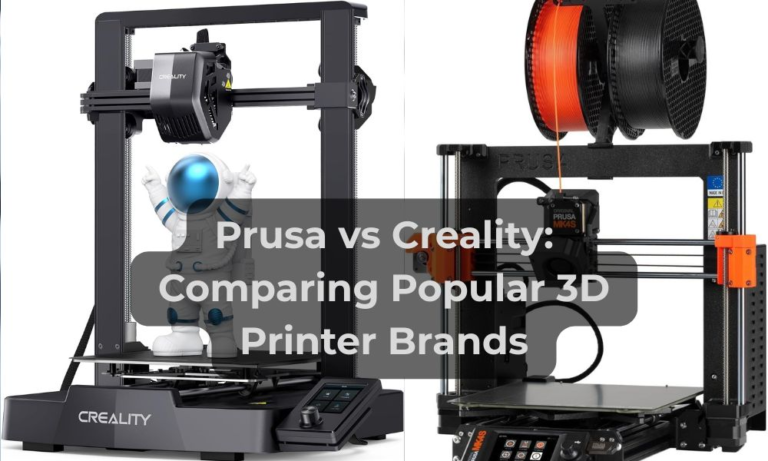
🆚 Prusa vs Creality: Comparing Popular 3D Printer Brands
A concise comparison of Prusa and Creality—exploring brand philosophy, hardware, user experience, and long-term value to help you choose the right 3D printer.
-
Best 3D Printers for Kids and Families in 2025: A Safety-First, Feature-Rich Comparison
When it comes to choosing the best 3D printer for kids and families (including your teens), safety, ease of use, and creative potential are key priorities.
-
Affordable resin printers for beginners
1. Why Choose Resin Printing as a Beginner? Are you looking for an Affordable resin printers for beginners? For newcomers to 3D printing, resin printers offer exceptional detail and smooth surface finishes, making them ideal for models, miniatures, and intricate designs. Unlike filament-based (FDM) printing, resin printers use UV light to cure liquid resin layer…
-
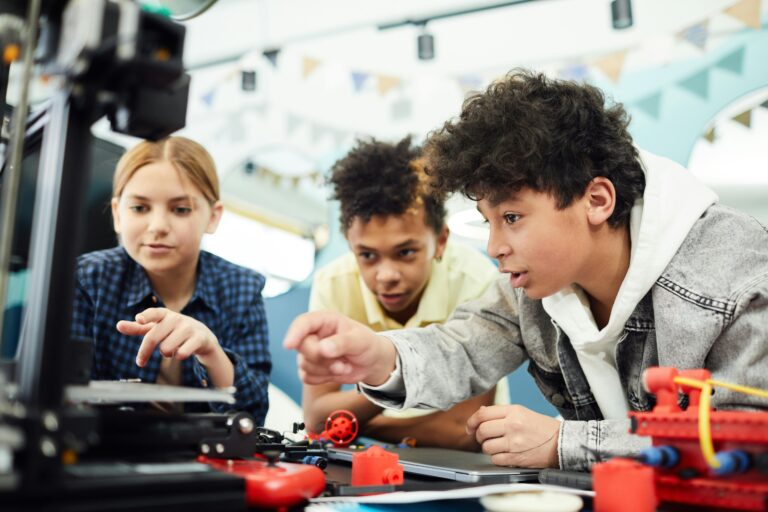
Best affordable 3D printers for kids
Choosing the best affordable 3D printers for kids ensures they enjoy the experience without frustration. Here are key features to consider:

Even printers with ABL may require initial manual calibration for optimal accuracy.
Bonus Section: Optimizing Slicer Settings for Better Prints
This section contains excerpts from our Comprehensive 3D Printer Slicer Guide, on amazon.
Even a perfectly calibrated printer relies on well-tuned slicer settings to ensure optimal print quality. A few key adjustments can reduce artifacts, improve adhesion, and enhance surface finish.
Fine-Tuning Print Speeds and Travel Moves
Balancing speed is crucial for avoiding print failures:
- Lower perimeter speed (35–50mm/s) improves surface smoothness.
- Higher infill speed (60–80mm/s) speeds up prints without affecting outer quality.
- Optimized travel speed (120–150mm/s) helps reduce stringing without causing excess vibration.
A slower first layer (20–30mm/s) improves bed adhesion and sets a strong foundation.
Retraction and Cooling Settings for Clean Prints
Poor retraction settings cause stringing, while improper cooling leads to warped prints. Fix them by:
- Adjusting retraction distance (4–6mm for Bowden, 2–4mm for direct-drive) to minimize oozing.
- Setting proper retraction speed (25–45mm/s) to prevent filament grinding.
- Cooling fan at 100% after the first few layers—Lower speeds reduce warping on tall or thin prints.
Increasing cooling for PLA helps sharper details, while reducing cooling for PETG and ABS improves layer bonding.
Adaptive Layer Heights for Better Resolution
Using dynamic layer heights ensures detailed prints while saving time:
- Lower layers for fine details (0.12–0.16mm)—Ideal for text or intricate features.
- Higher layers for large prints (0.24–0.3mm)—Speeds up simpler geometries.
- Variable layer height—Some slicers automatically adjust layer thickness for smoother curves.
This technique helps balance print speed with quality without requiring extra post-processing.
Brims, Rafts, and Supports: When to Use Them
Adding support structures strategically improves adhesion and stability:
- Brims—Helpful for small prints or models with limited bed contact to prevent warping.
- Rafts—Best for tricky materials like ABS, as they add a solid base beneath the print.
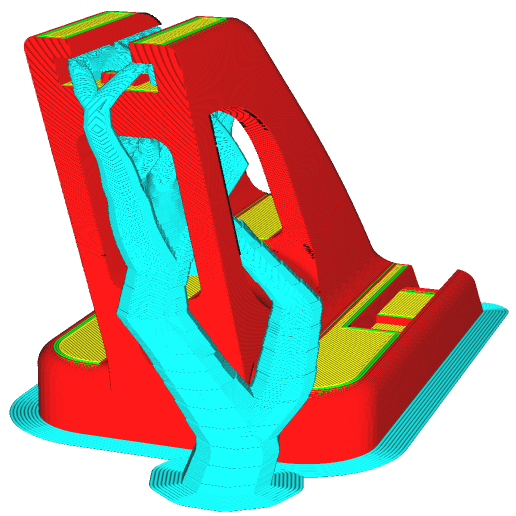
- Custom supports—Using tree supports or manually placed supports reduces waste and improves post-processing cleanup.
Setting the right support density and spacing helps ensure easy removal without damaging prints.
By fine-tuning slicer settings, users can maximize print quality and efficiency, leading to consistently better results with any filament or printer type.
Optimal Slicer Settings for Filament Types
| Filament Type | Nozzle Temp (°C) | Bed Temp (°C) | Retraction Distance (mm) | Retraction Speed (mm/s) | Cooling Fan (%) | Print Speed (mm/s) |
|---|---|---|---|---|---|---|
| PLA | 190–220 | 50–60 | 0.5–2 | 25–45 | 100 | 40–60 |
| PETG | 220–250 | 70–90 | 3–6 | 25–45 | 50–70 | 40–60 |
| ABS | 230–260 | 90–110 | 1–3 | 25–45 | 0–20 | 40–60 |
| TPU (Flexible) | 200–230 | 20–40 | 2–5 | 20–30 | 100 | 20–40 |
| Nylon | 240–270 | 70–100 | 1–3 | 25–45 | 0–20 | 30–50 |
These settings serve as a starting point, but fine-tuning based on your specific printer and filament brand can further improve results.